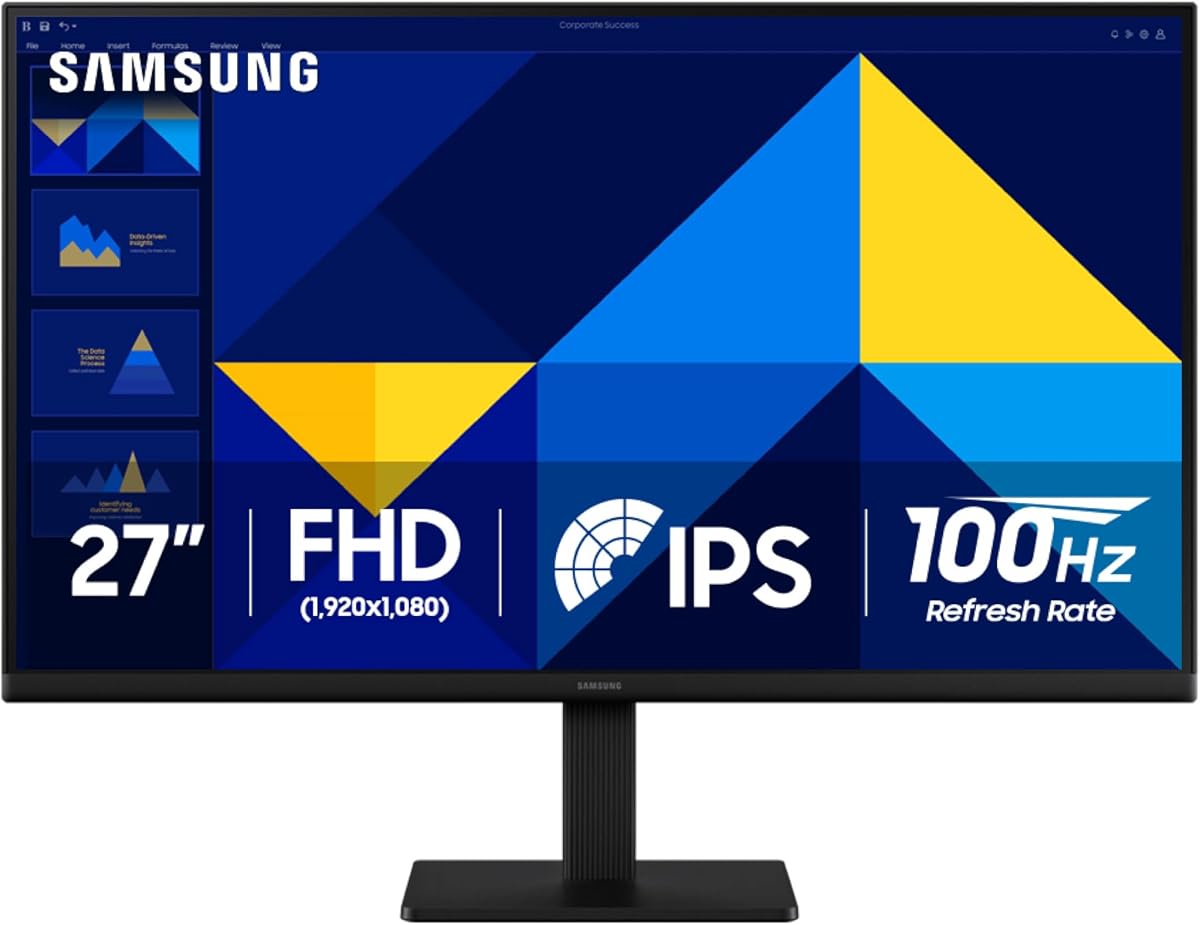
Samsung 27" (S30GD) Essential Monitor with IPS Panel
4.5Editor score
IPS panel for vivid colors
100Hz refresh rate
Slim bezel modern design
Finding the right monitor for retouching is essential for professionals who demand precise color accuracy and detailed image clarity. Whether you are editing high-resolution portraits or managing complex graphic design projects, the display you choose directly impacts your workflow efficiency and final output quality.
We have evaluated ten top-rated monitors based on their color gamut coverage, resolution standards, panel technologies, and ergonomic features. Our analysis focuses on models that offer reliable performance for creative work, ensuring that every shade and texture is represented faithfully across the screen.
Each pick in this guide highlights specific strengths tailored to different budgets and workflow needs. While we provide detailed insights based on manufacturer specifications and user feedback, please note that pricing and availability can change frequently, so check current listings before making your final decision.
4.5Editor score

4.6Editor score

3.9Editor score
As an Amazon Associate we earn from qualifying purchases.
This side-by-side comparison highlights key specifications across all ten models to help you quickly identify the display that best fits your retouching needs and budget constraints.




The ASUS ROG XG27AQDMGR stands out as a top choice for retouching due to its TrueBlack Glossy WOLED panel. With a rating of 4.6 stars, it delivers deep blacks and vibrant colors that are crucial for detailed photo work.
We may earn a commission when you buy through this link, at no additional cost to you.
Its 99% DCI-P3 color gamut and Delta E < 2 color difference ensure that shades are reproduced faithfully. The VESA DisplayHDR 400 True Black compliance adds depth to high dynamic range images, making shadows and highlights more nuanced.
While OLED technology offers unmatched contrast, there is a potential risk of burn-in if static elements remain on screen too long. However, ASUS OLED Care Pro technology helps mitigate this by switching to a black screen when the user is away.
This monitor is ideal for creatives who need high-end color fidelity and HDR performance. If you value precision and can manage the screen usage to avoid static images, this display offers a professional-grade experience at a competitive level.
The combination of true 10-bit color and wide gamut coverage ensures that your edits match the final output across different devices.
ASUS provides a three-year warranty including burn-in coverage, giving you peace of mind while working on long-term projects.
We may earn a commission when you buy through this link, at no additional cost to you.
The Samsung S30GD Essential Monitor offers an accessible entry point for those needing reliable IPS performance. Rated at 4.5 stars, it delivers vivid colors across the entire display, which is essential for consistent retouching work.
We may earn a commission when you buy through this link, at no additional cost to you.
Its IPS panel ensures tones and shades are represented consistently even when viewing from different angles. The 100Hz refresh rate reduces motion blur, making it easier to track changes during detailed editing sessions without lag.
While it lacks advanced HDR specs found in higher-end models, the eye care features help reduce strain during extended work. The slim bezels and modern design also save desk space while maintaining a professional look.
This monitor is perfect for beginners or hobbyists who need dependable color accuracy without breaking the bank. If you need a straightforward display for general photo editing and basic design tasks, it provides excellent value.
Reduced blue light and screen flicker technology help keep your eyes comfortable, allowing for longer editing sessions without fatigue.
Plug devices directly into the monitor for increased flexibility, simplifying your computing environment and reducing cable clutter.
We may earn a commission when you buy through this link, at no additional cost to you.
The LG UltraFine 6K is a powerhouse for creatives who need maximum detail and precision. With a 6K resolution and 224 PPI, it reveals textures and fine details that standard 4K monitors might miss.
We may earn a commission when you buy through this link, at no additional cost to you.
Its Nano IPS Black panel delivers up to 2000:1 contrast ratio, ensuring deeper blacks and richer shadows for realistic rendering. The 99.5% Adobe RGB coverage ensures that your color grading work matches professional print standards.
The Thunderbolt 5 connectivity allows for ultra-fast data transfer and daisy-chaining multiple displays, which streamlines complex workflows. However, this advanced technology comes with a higher price tag that may not suit every budget.
This monitor is best suited for professional retouchers and video editors who demand the highest fidelity available. If you need a display that scales with future software needs and offers unmatched clarity, this is a top-tier choice.
Over 21 million pixels provide razor-sharp text and image detail, allowing you to view full-resolution content without losing interface clarity.
Thunderbolt 5 bridges future-ready workflows with maximum scalability, making it easy to connect drives and devices efficiently.
We may earn a commission when you buy through this link, at no additional cost to you.
The Samsung ViewFinity S7 provides exceptional clarity for professionals with its 4K UHD resolution. Rated at 4.6 stars, it reveals greater levels of detail essential for intricate designs and dynamic video content.
We may earn a commission when you buy through this link, at no additional cost to you.
Its HDR10 optimization offers darker blacks and brighter highlights, enhancing the depth of your edits. The display supports more than 1 billion accurate colors, ensuring smooth transitions between shades without banding.
Certified by TÜV for eye comfort, the monitor minimizes blue light and prevents flickering during long sessions. This makes it a comfortable choice for all-day work without compromising on visual quality.
This monitor is a strong option for creatives needing high resolution without the ultra-premium price of 6K displays. If you value clarity and comfort in equal measure, the ViewFinity S7 delivers reliable performance for daily tasks.
High pixel density reveals subtle textures, allowing you to spot imperfections quickly during the retouching process.
More screen space enables complex diagram creation and multitasking, boosting your overall workflow efficiency.
We may earn a commission when you buy through this link, at no additional cost to you.
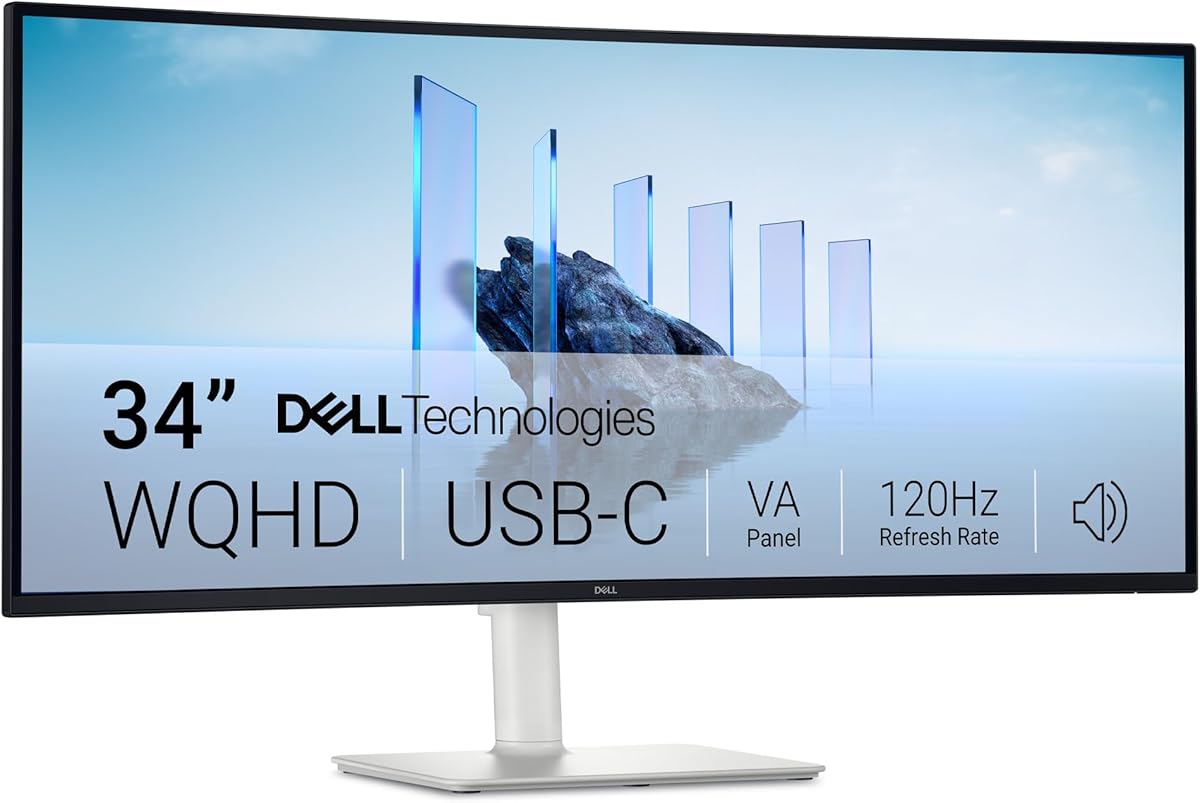
The Dell S3425DW offers an ultrawide 34-inch experience that is ideal for multitasking during photo editing. With a rating of 4.4 stars, it provides a wide canvas for viewing images alongside your tool panels.
We may earn a commission when you buy through this link, at no additional cost to you.
Its VA panel delivers a 3000:1 contrast ratio, offering deeper blacks and more realistic colors compared to standard IPS. The 99% sRGB coverage ensures vibrant, true-to-life colors for most web and digital workflows.
ComfortView Plus reduces harmful blue light emissions without sacrificing color accuracy, which helps maintain focus during long projects. The USB-C connectivity also keeps your desk organized by combining power and data in one cable.
This monitor is perfect for professionals who need extra horizontal screen real estate for complex workflows. If you prioritize workspace efficiency and color vibrancy, the Dell S3425DW is a practical choice.
Enjoy vivid colors with 95% DCI-P3 coverage, ensuring your digital creations look great on modern screens.
USB-C cable delivery simplifies your setup, allowing you to focus on creative work rather than cable management.
We may earn a commission when you buy through this link, at no additional cost to you.
The ASUS TUF Gaming VG27AQM5A combines fast IPS technology with robust color performance suitable for creative work. Its 95% DCI-P3 gamut ensures vibrant and accurate colors, making it a versatile tool for both editing and casual gaming.
We may earn a commission when you buy through this link, at no additional cost to you.
Fast IPS technology enables a 0.3ms response time, eliminating ghosting and ensuring sharp visuals when navigating detailed images. The DisplayWidget Center allows for easy adjustments, streamlining your workflow without switching menus.
While designed primarily for gaming, its high refresh rate and color accuracy make it a solid choice for users needing speed and fidelity. The ELMB Sync technology further enhances clarity during fast-paced transitions.
This monitor is ideal for creators who need quick responsiveness alongside color precision. If you value performance and want a versatile display for mixed use, the TUF Gaming VG27AQM5A delivers strong results.
ELMB Sync works with variable refresh rates to eliminate tearing and ghosting, ensuring sharp visuals throughout your session.
Adjust monitor settings using a mouse with the exclusive DisplayWidget Center application, saving time during setup.
We may earn a commission when you buy through this link, at no additional cost to you.
The Samsung ViewFinity S6 offers QHD resolution that reveals hidden details, ideal for intricate designs and dynamic content. Rated at 4.3 stars, it provides a smooth workflow with a 100Hz refresh rate that reduces lag.
We may earn a commission when you buy through this link, at no additional cost to you.
Its ergonomic stand allows for tilt, pivot, and height adjustments, making it easier to view long documents without scrolling. This flexibility ensures you can position the screen perfectly for your specific retouching posture.
Eye Saver Mode protects your vision by reducing blue light and eye strain, which is essential for long editing sessions. The simple connectivity via HDMI and DisplayPort makes it straightforward to integrate into existing setups.
This monitor is a reliable choice for daily creative work that requires consistent performance and comfort. If you need a balanced display with strong ergonomics and resolution, the ViewFinity S6 is a practical option.
Higher pixel density helps you dive into complex diagrams and intricate designs without visual fatigue.
Adjusting the height and pivot helps reduce physical strain, keeping you focused on the creative task at hand.
We may earn a commission when you buy through this link, at no additional cost to you.
The AOC Q27G41ZE delivers stunning detail and vibrant color on a 27-inch IPS panel. Its QHD resolution ensures precise image quality, while the 240Hz refresh rate helps reduce motion blur during quick navigation.
We may earn a commission when you buy through this link, at no additional cost to you.
With Adaptive-Sync support, the monitor prevents screen tearing and input lag, ensuring fluid performance even when multitasking across different applications. The three-sided frameless design maximizes screen space and adds a modern touch.
The tilt adjustment allows for ergonomic positioning, keeping your setup comfortable for extended periods. While the brightness and contrast are solid, the design is tailored towards performance-oriented users.
This monitor is excellent for users needing high responsiveness and vibrant colors at an accessible price point. If you want a fast and visually pleasing display for general editing and mixed media, it is a strong contender.
Say goodbye to screen tearing with Adaptive-Sync ensuring fluid performance across both AMD and NVIDIA GPUs.
The frameless design maximizes viewing area, making it easier to focus on your creative content.
We may earn a commission when you buy through this link, at no additional cost to you.
The ASUS ProArt PA279CV is designed specifically for professionals requiring precise color accuracy. Its factory calibration delivers Delta E < 2 accuracy, ensuring that your colors are consistent across different devices.
We may earn a commission when you buy through this link, at no additional cost to you.
With 100% sRGB and Rec. 709 coverage, it meets international color standards for web and broadcast work. The versatile connectivity options include USB-C with 65W power delivery, simplifying your connection to laptops.
The extended warranty provides peace of mind for long-term use, covering both standard and extended periods. While not the fastest panel, its focus on stability and accuracy makes it ideal for reliable editing.
This monitor is perfect for content creators who prioritize color fidelity over speed. If you need a dependable workhorse that meets professional standards, the ProArt PA279CV is a solid investment.
Calman Verified accuracy ensures your work matches industry standards right out of the box without extra adjustment.
The five-year warranty included with registration provides long-term security for your professional tools.
We may earn a commission when you buy through this link, at no additional cost to you.
The Samsung Odyssey OLED G6 is engineered for perfection with a QD-OLED display that delivers high brightness and a wide range of colors. Its rating of 4.7 stars highlights its effectiveness in producing lifelike visuals for detailed work.
We may earn a commission when you buy through this link, at no additional cost to you.
Pantone Validated screen accuracy allows it to reproduce 2100+ lifelike colors and 110+ skin tone shades, which is crucial for retouching portraits. The OLED Safeguard technology actively helps prevent burn-in, addressing a common concern.
Glare Free Technology keeps the screen clear of reflections, ensuring that your edits are visible even under various lighting conditions. This feature is particularly useful for studios without perfect light control.
This monitor is an excellent choice for professionals needing high contrast and accurate skin tones. If you need a display that bridges the gap between gaming performance and creative fidelity, the OLED G6 delivers.
Accurately reproducing lifelike colors and skin tones ensures your portraits look natural and vibrant.
Glare Free Technology ensures screen clarity by reducing reflections from external light sources.
We may earn a commission when you buy through this link, at no additional cost to you.
Selecting the right display requires understanding how color, resolution, and ergonomics impact your daily workflow. This section outlines the most critical factors to consider before you buy.
Color accuracy is the most important factor for retouching. Look for monitors that cover at least 100% of the sRGB space and ideally offer wide DCI-P3 or Adobe RGB coverage. Delta E values below 2 ensure that the colors you see on screen match the final output.
Always check if the monitor comes factory calibrated to save time and ensure consistency from day one.
Higher resolutions like 4K or 6K provide more screen real estate and sharper details. This allows you to see fine textures and edges without zooming in excessively. Pixel density affects how crisp text and UI elements appear.
For retouching, a 27-inch 4K monitor is usually the sweet spot for clarity versus performance requirements.
IPS panels offer the best viewing angles and color consistency. OLED panels provide deeper blacks and better contrast but may require more care to avoid burn-in. VA panels are a middle ground with high contrast but slightly lower viewing angles.
Choose based on your environment and how much you rely on contrast versus color stability.
Retouching often involves long hours in front of the screen. Ensure the stand allows for height, tilt, and pivot adjustments. A well-adjusted screen reduces neck strain and helps maintain a consistent viewing distance.
Investing in a monitor with a robust ergonomic stand can significantly improve your physical comfort.
Modern workflows require versatile connections. Look for USB-C ports with power delivery to simplify laptop setups. HDMI and DisplayPort options allow you to connect multiple devices without adapters.
A monitor that acts as a hub can keep your desk organized and efficient.
Extended editing sessions can lead to eye strain. Features like flicker-free technology and low blue light modes certified by TÜV Rheinland help protect your vision. These technologies maintain color accuracy while reducing harmful exposure.
Prioritize monitors with proven eye comfort certifications if you work late into the night.
Professional equipment should be backed by reliable warranties. Look for at least a three-year coverage, especially for OLED panels that may have specific burn-in protection. Manufacturer support quality also matters for troubleshooting.
A comprehensive warranty ensures that your investment is protected over the long term.
Brightness affects how you perceive shadows and highlights. Monitors with HDR support can show more nuance in lighting. However, ensure the brightness is sufficient for your room lighting to avoid eye fatigue.
A balanced brightness level is better than extreme peaks if you work in a dimly lit room.
Start by calibrating your monitor using a colorimeter to ensure the settings match your color standards. This step guarantees that the colors you adjust in software appear correctly on the screen.
Use a protective screen filter or adjust brightness levels to reduce glare. This keeps the screen clear and makes it easier to see fine details during high-resolution edits.
Perform regular cleaning with a soft, lint-free cloth to prevent dust buildup. Avoid harsh chemicals that could damage the panel coating and compromise image quality.
For most professionals, a 4K resolution on a 27-inch screen provides the ideal balance of detail and workspace. Higher resolutions like 6K offer more detail but require stronger graphics hardware to handle effectively.
IPS panels are generally preferred for color stability and viewing angles, but OLED offers superior contrast. Choose IPS if you need consistent color across angles or OLED if deep blacks are a priority for your workflow.
Avoid leaving static images on the screen for long periods. Use built-in pixel shifting features and enable screen savers. Modern OLED monitors also have safety features that detect idle users and adjust brightness automatically.
Look for a monitor that covers 100% of sRGB at a minimum. For professional print work, 99% Adobe RGB or 95%+ DCI-P3 is recommended to ensure your edits translate well to physical media.
Yes, USB-C connectivity allows you to connect your laptop with a single cable while delivering power and video. This simplifies your setup and reduces cable clutter, keeping your workspace focused on creativity.
Delta E measures the difference between colors. A value of 2 or lower is imperceptible to the human eye. Monitors with low Delta E ensure that the colors you see are accurate to the original source.
The ten monitors reviewed in this guide offer a range of options tailored to different budgets and needs. From the high-performance OLED displays to the reliable IPS panels, each model brings unique strengths to the table for professional editing.
Prioritize color accuracy and resolution based on your specific workflow requirements. A monitor that aligns with your project demands will significantly improve your productivity and the quality of your final output.
Prices and availability can change frequently, so always check current listings before making your final decision. This guide serves as a reference to help you make an informed choice for your creative setup.